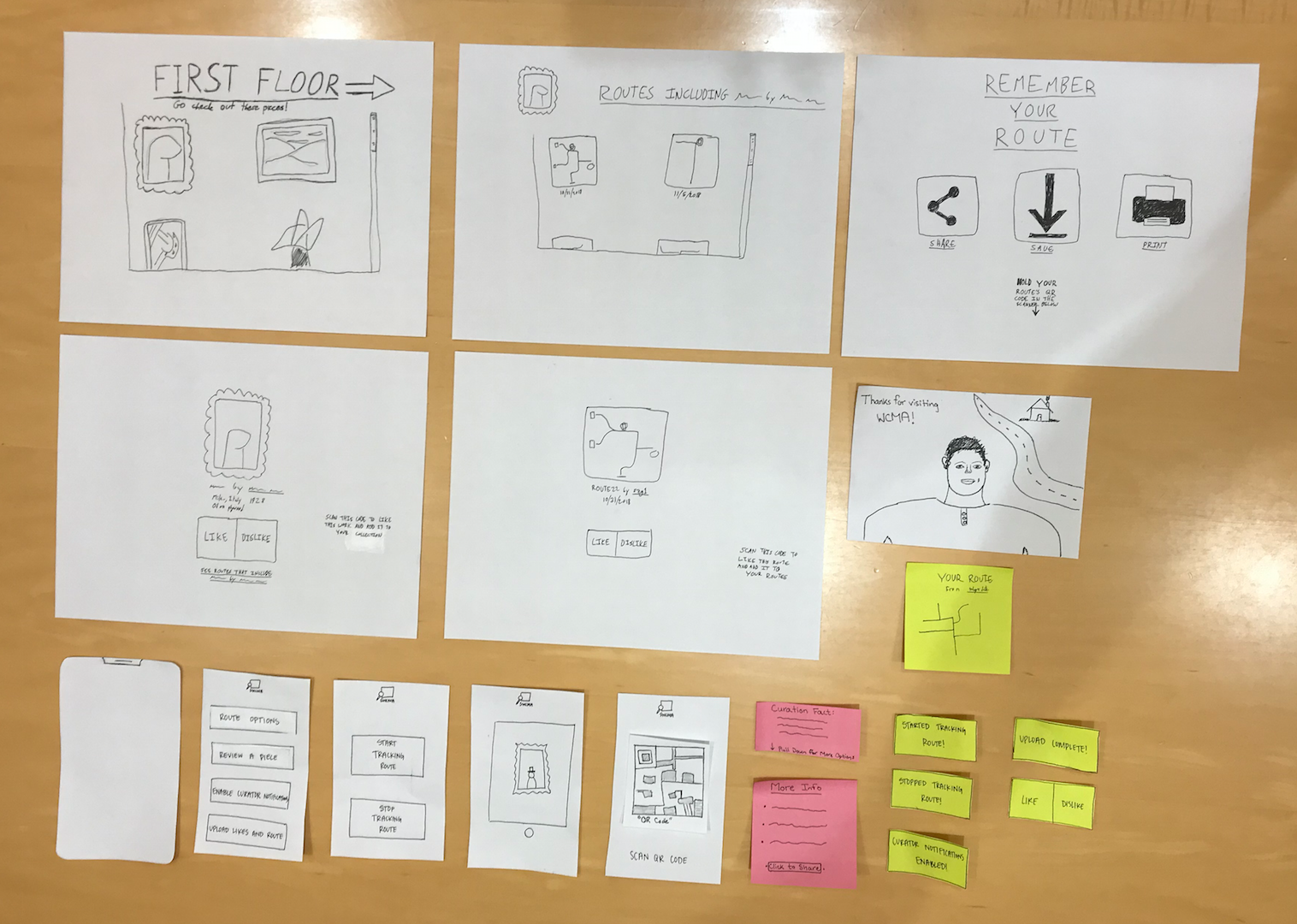
 The prototype reflects both the kiosk and mobile aspects of the design. During a museum visit, the user will alternate between the platforms reflected below.
Task 1: Agency in one’s museum experience
The user can gain agency in their visit by tracking their route and receiving a souvenir of it when they leave, indicating pieces (both in the museum and on the kiosk) and routes they have strong feelings about, and seeing similar pieces in WCMA’s entire collection and routes that include selected pieces.
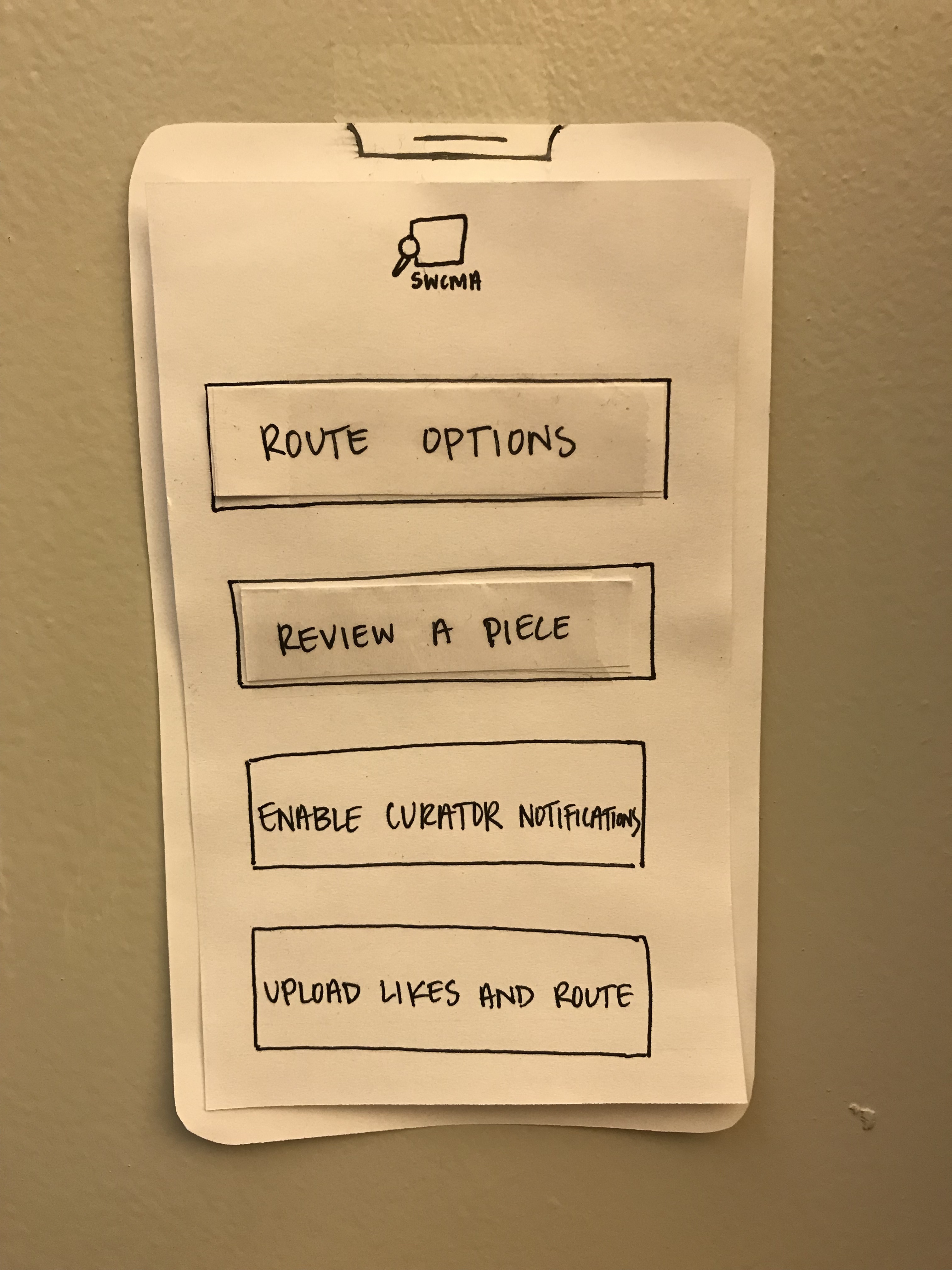 Opening the app on one’s phone presents the user with 4 main options for navigation.
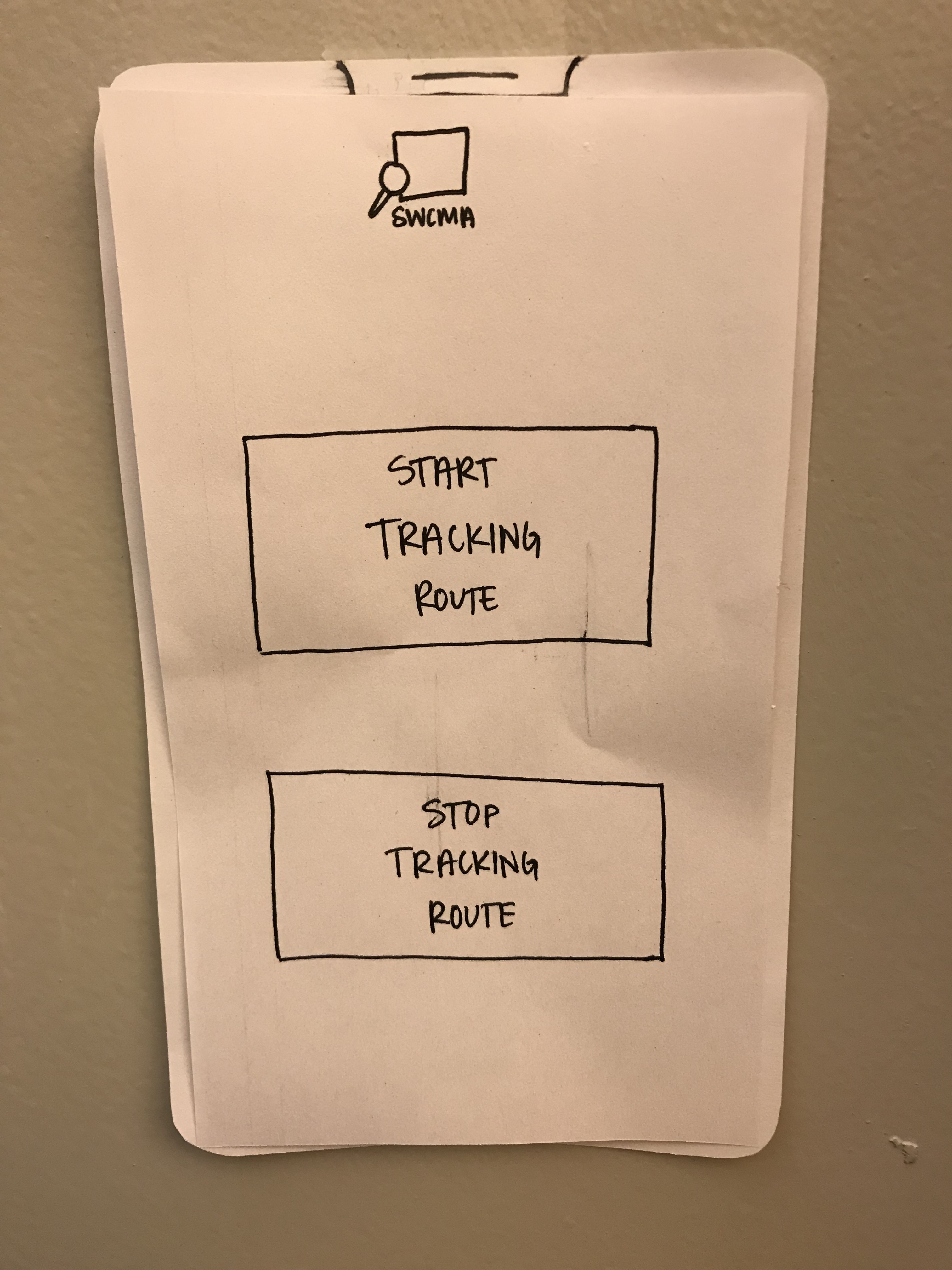 Upon choosing “Route Options” the user can decide to start, and later stop, tracking their route through the museum.
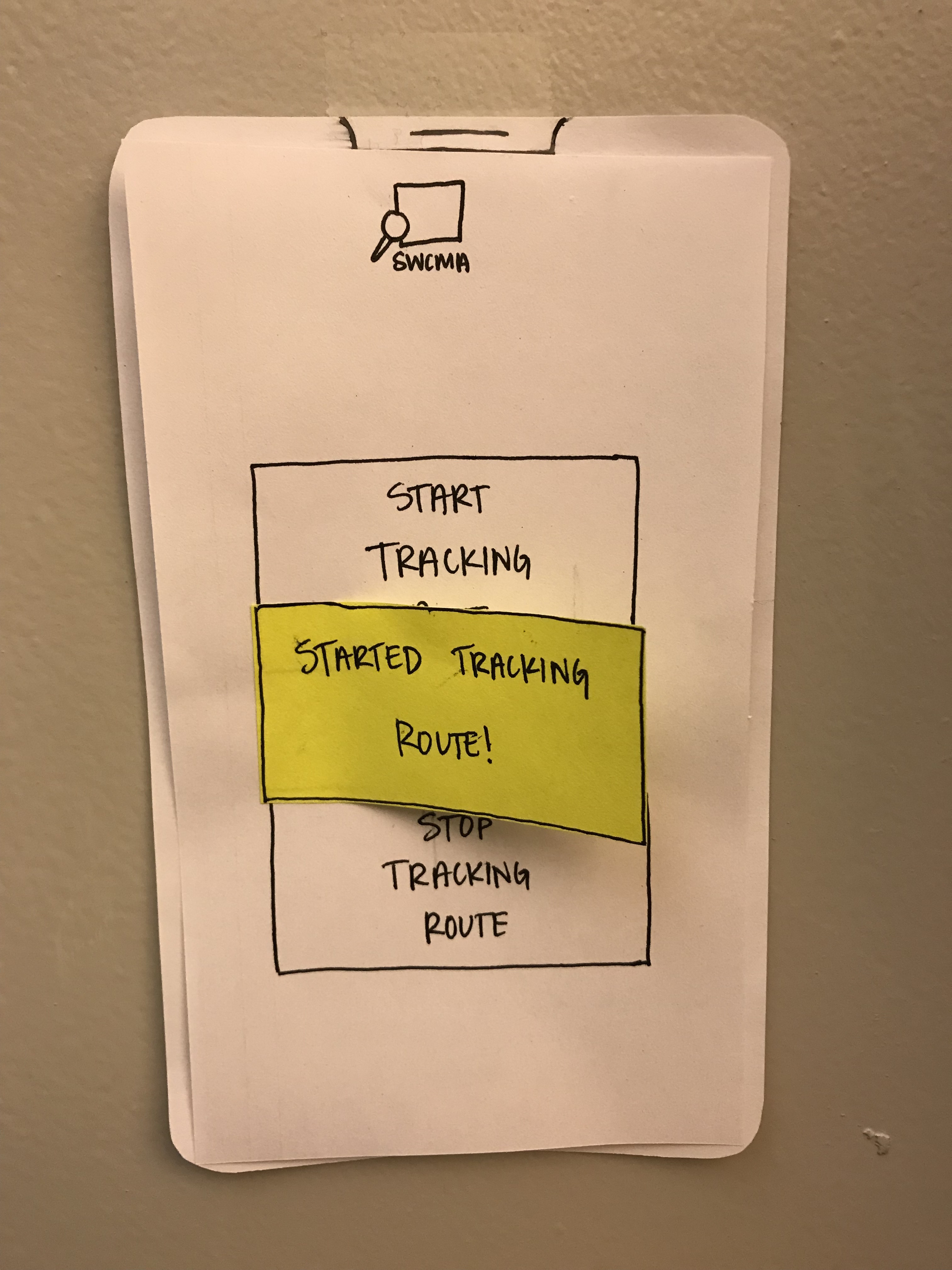 The app provides feedback for the user when they start tracking their route.
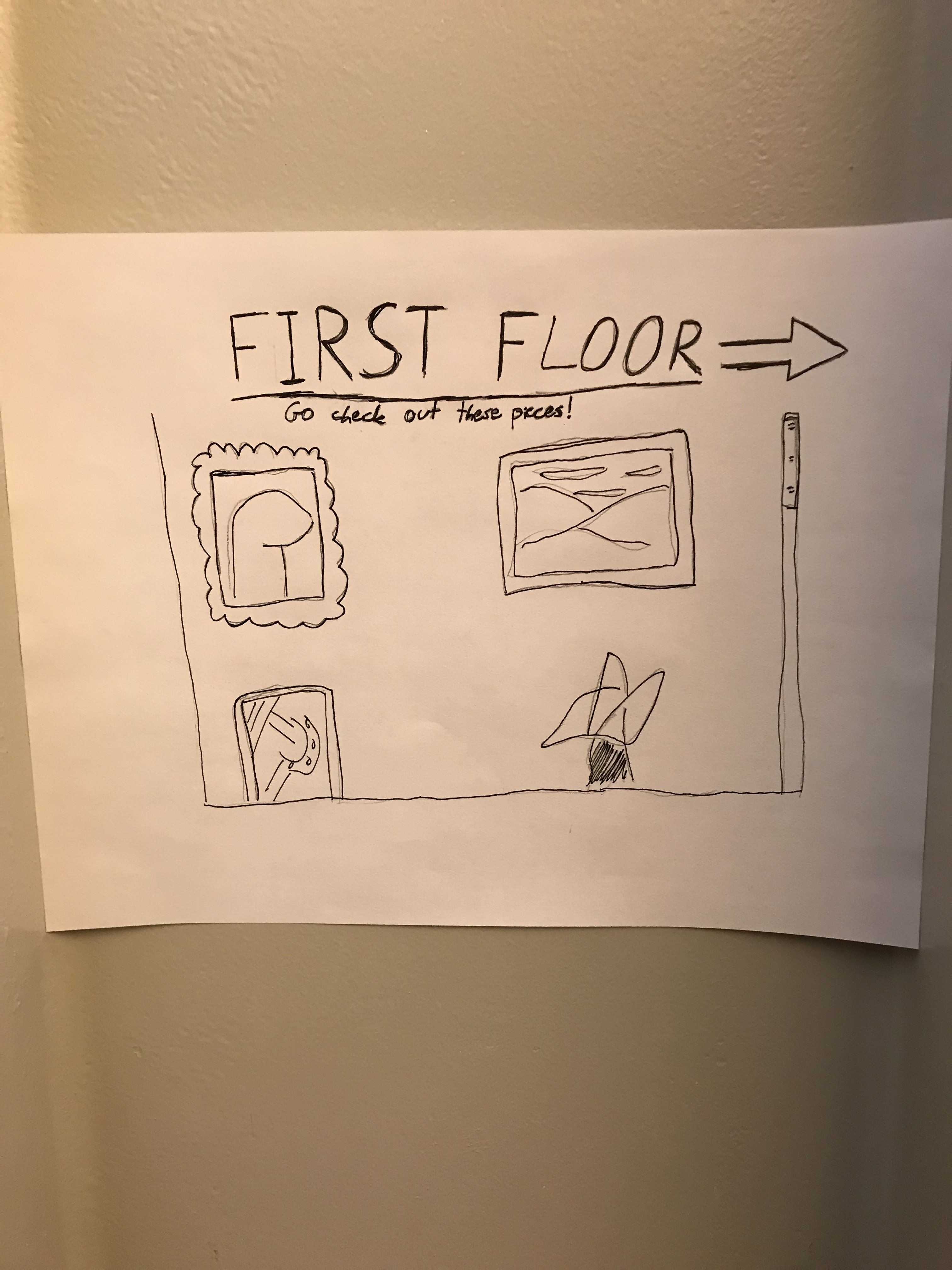 The first kiosk is stationed by the stairs on the first floor and shows a menu of works displayed on the first floor that can be scrolled through and clicked on for more information.
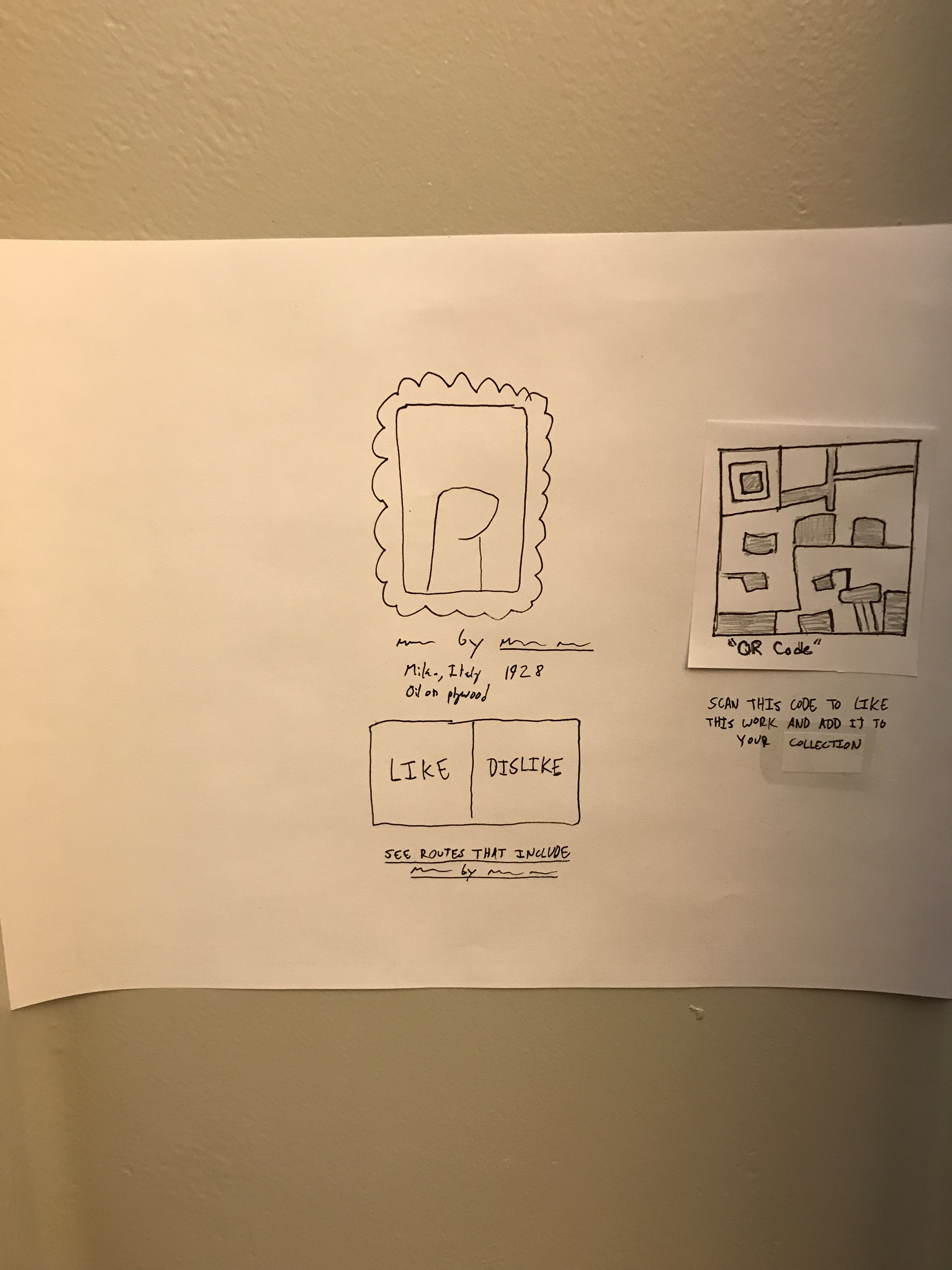 Clicking on a painting provides more information (artist, medium, date, etc.) and invites the user to “Like” or “Dislike” the painting or add it to their account’s “Collection” by scanning the QR code on the screen as well as showing a link to past routes through the museum that visited that work.
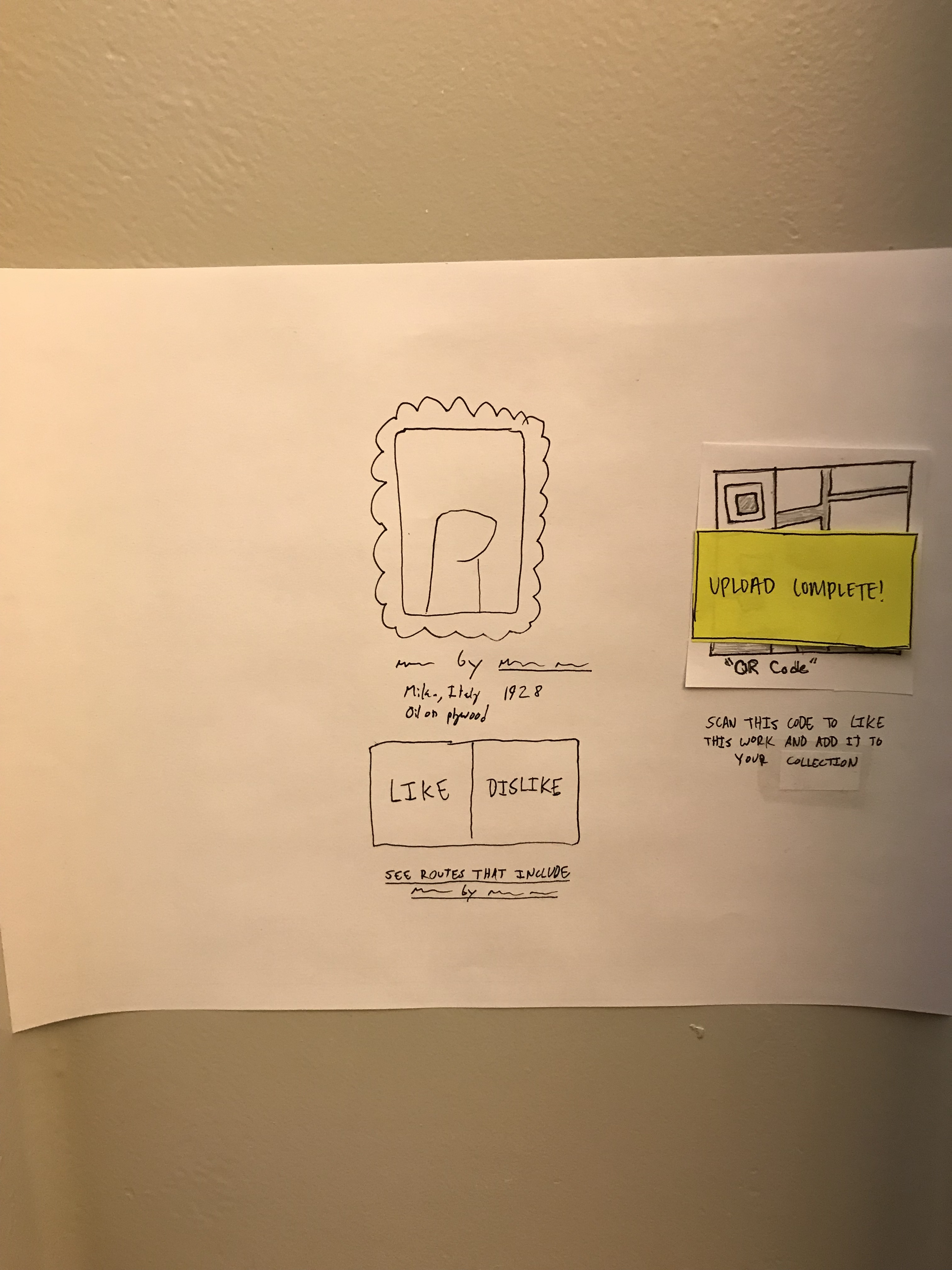 Feedback for successful upload of a piece from kiosk to phone.
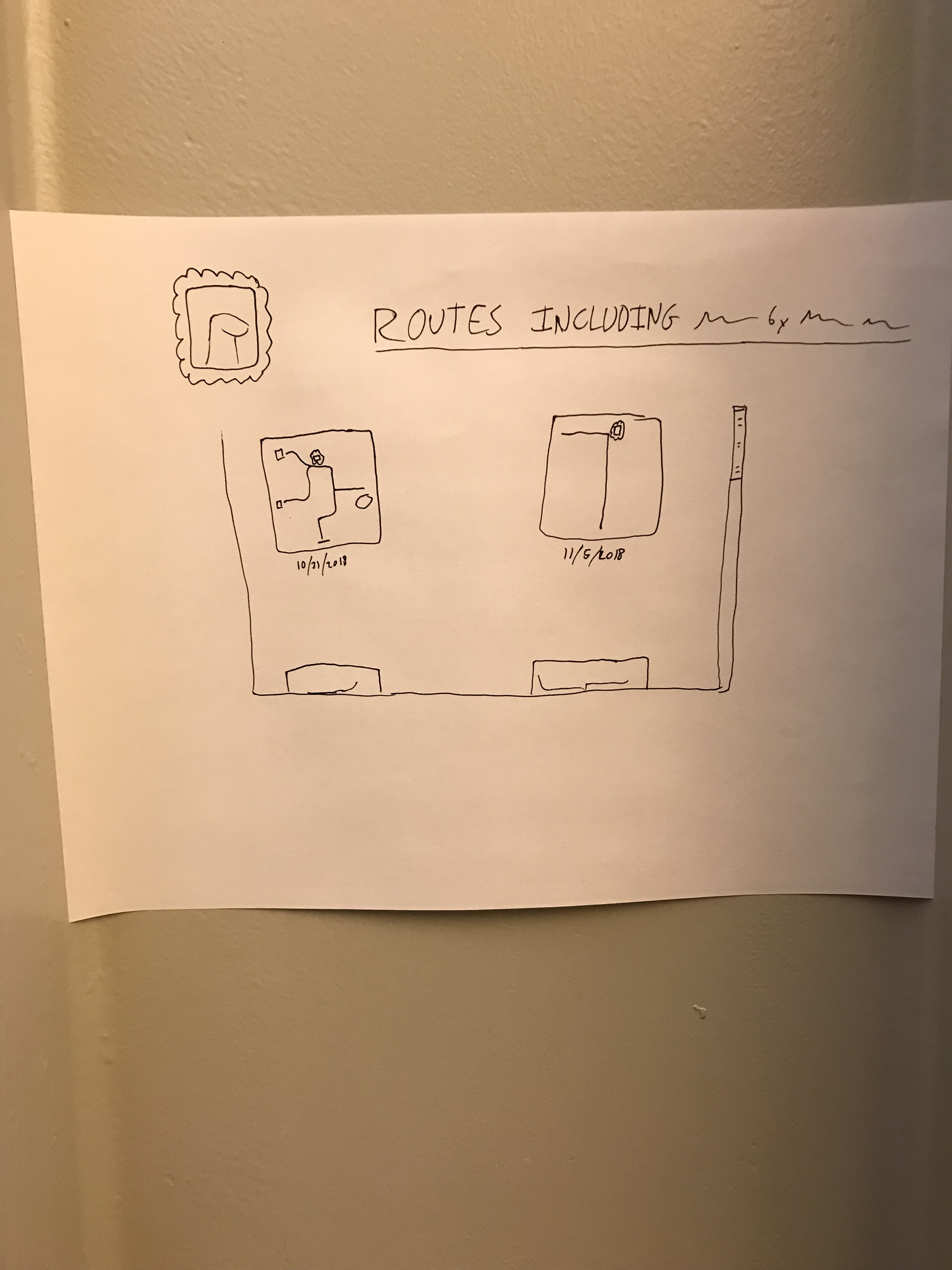 A menu showing past routes that include the specific work and the dates on which they were created – clicking on a route provides more information.
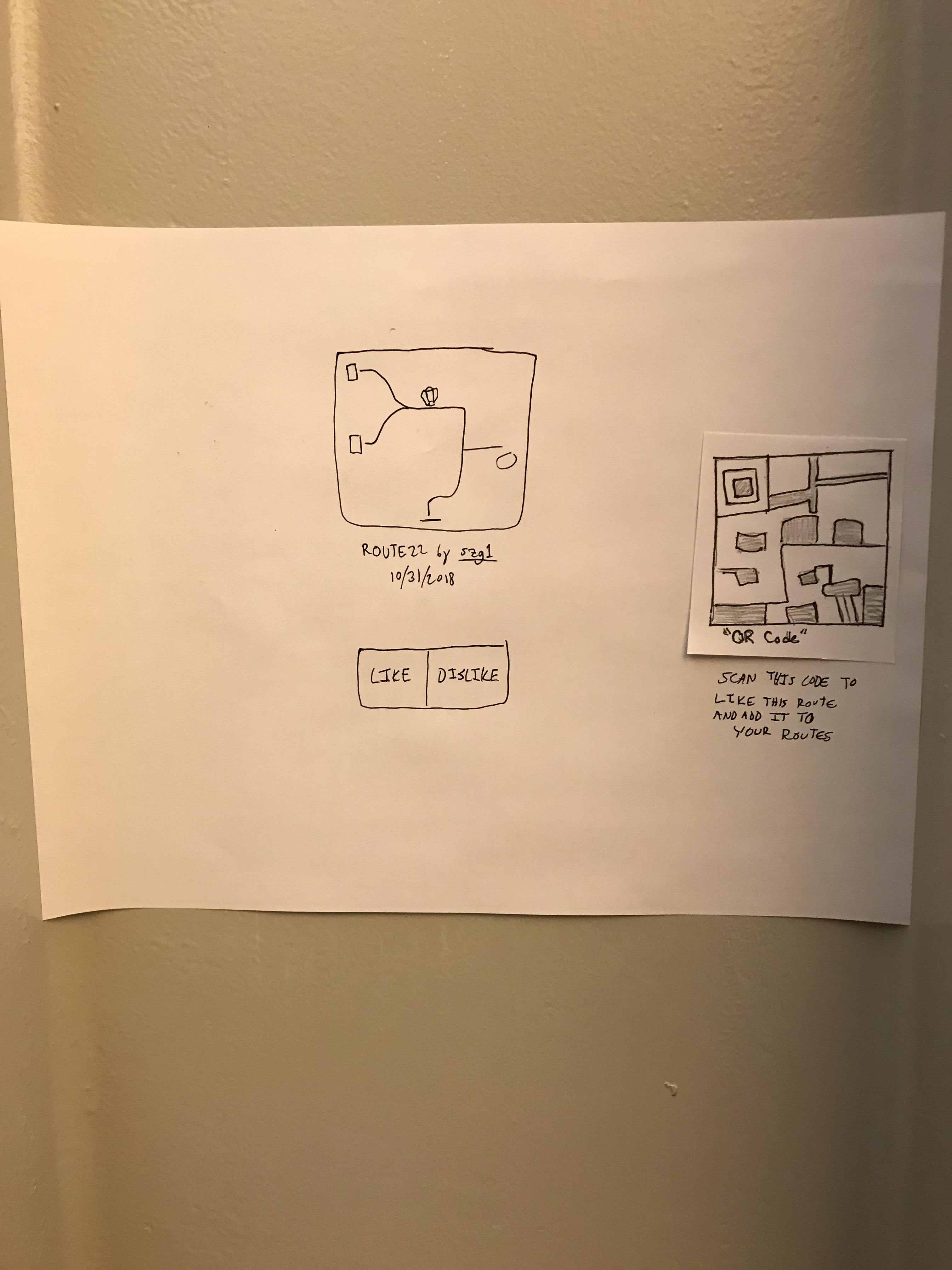 Users can like or dislike a specific route or can save it by scanning a QR code that saves the route to their account for future viewing or use.
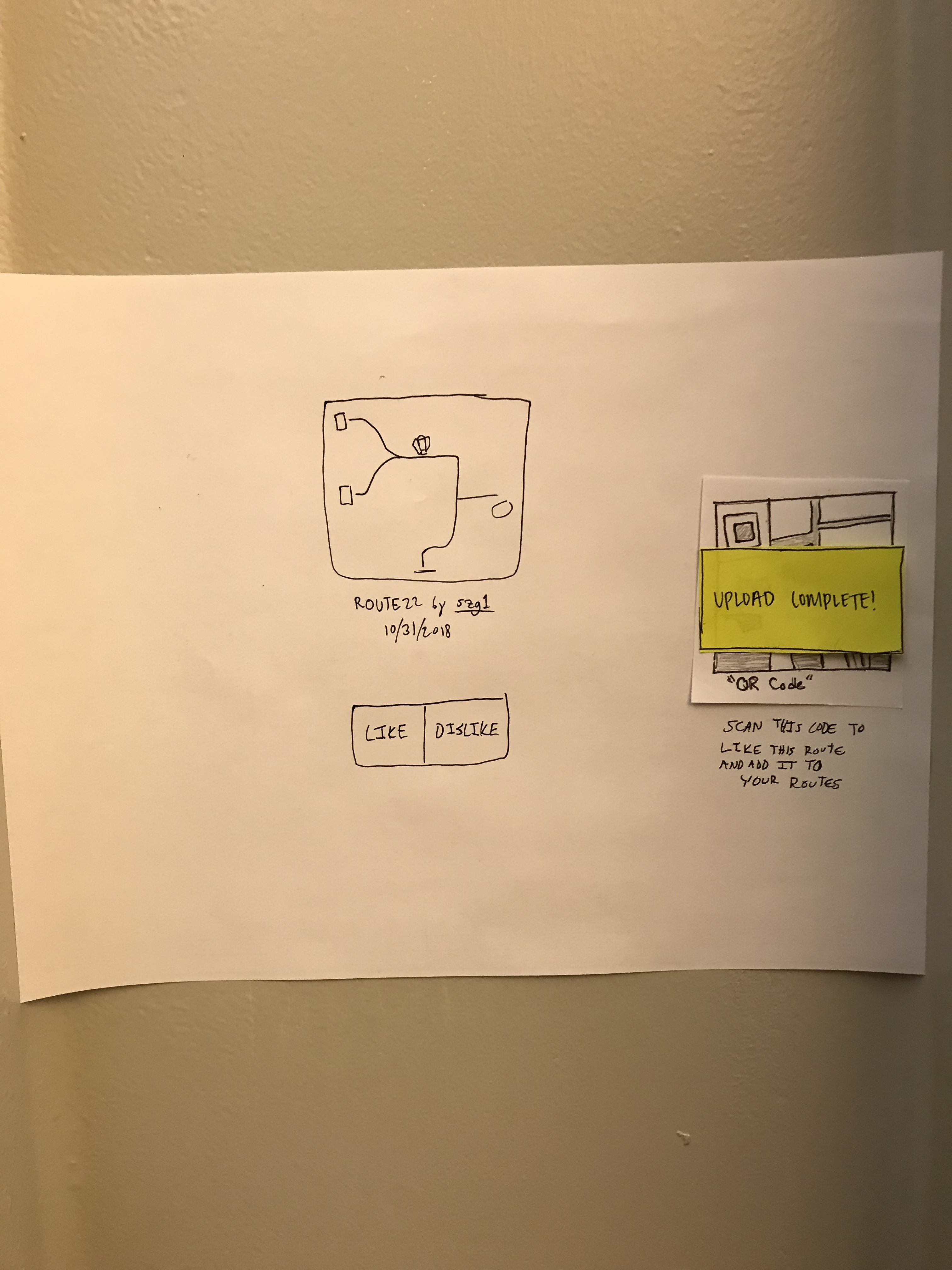 Feedback for a successful QR code scan of a liked/disliked route from the kiosk to the mobile app.
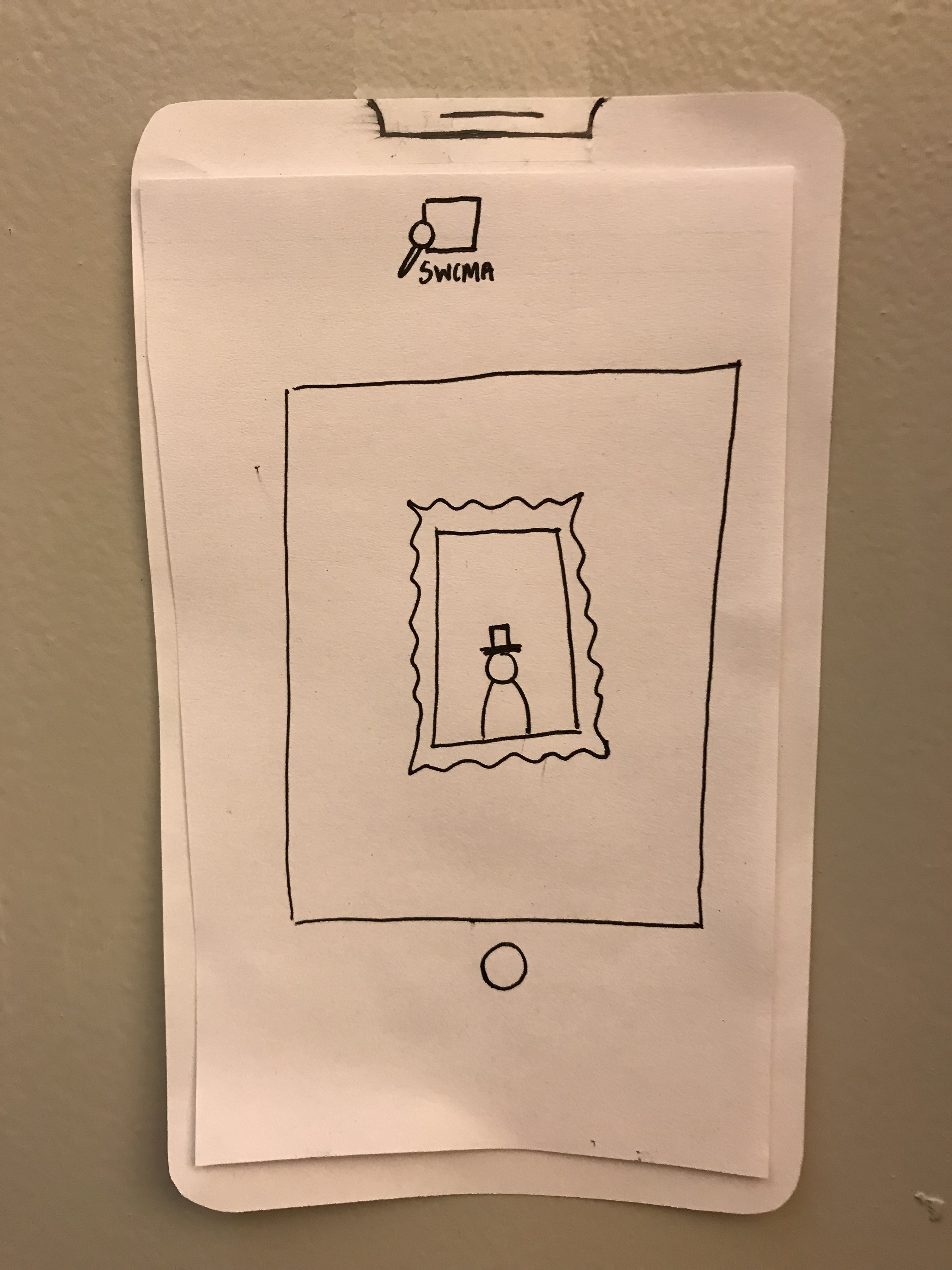 Upon clicking “Review a Piece” the user is taken to an in-app camera.
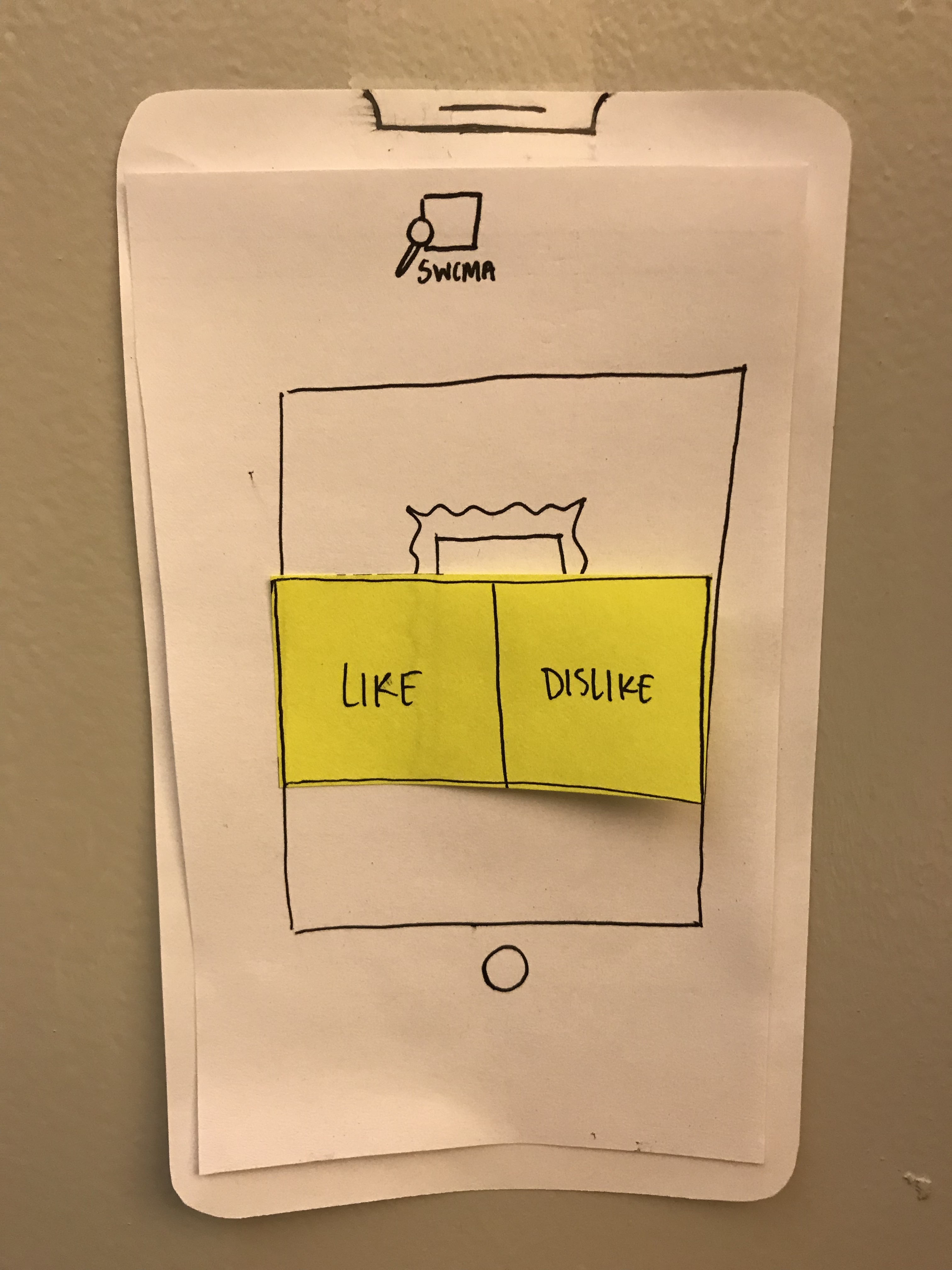 The camera function gives the user the ability to like or dislike a piece of art.
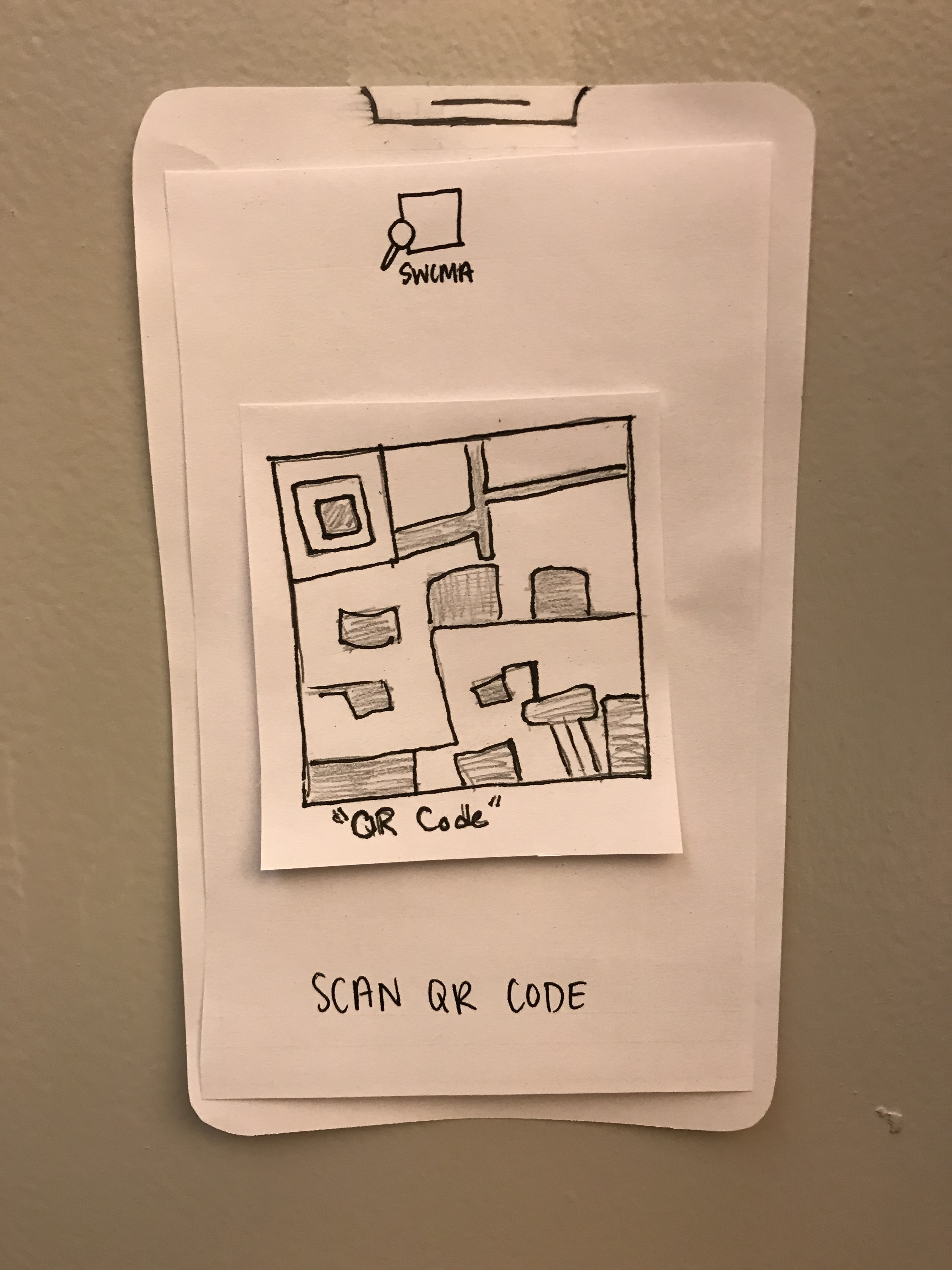 Feedback for a successful QR code scan to upload pieces liked/disliked via the camera on the mobile app to the kiosk.
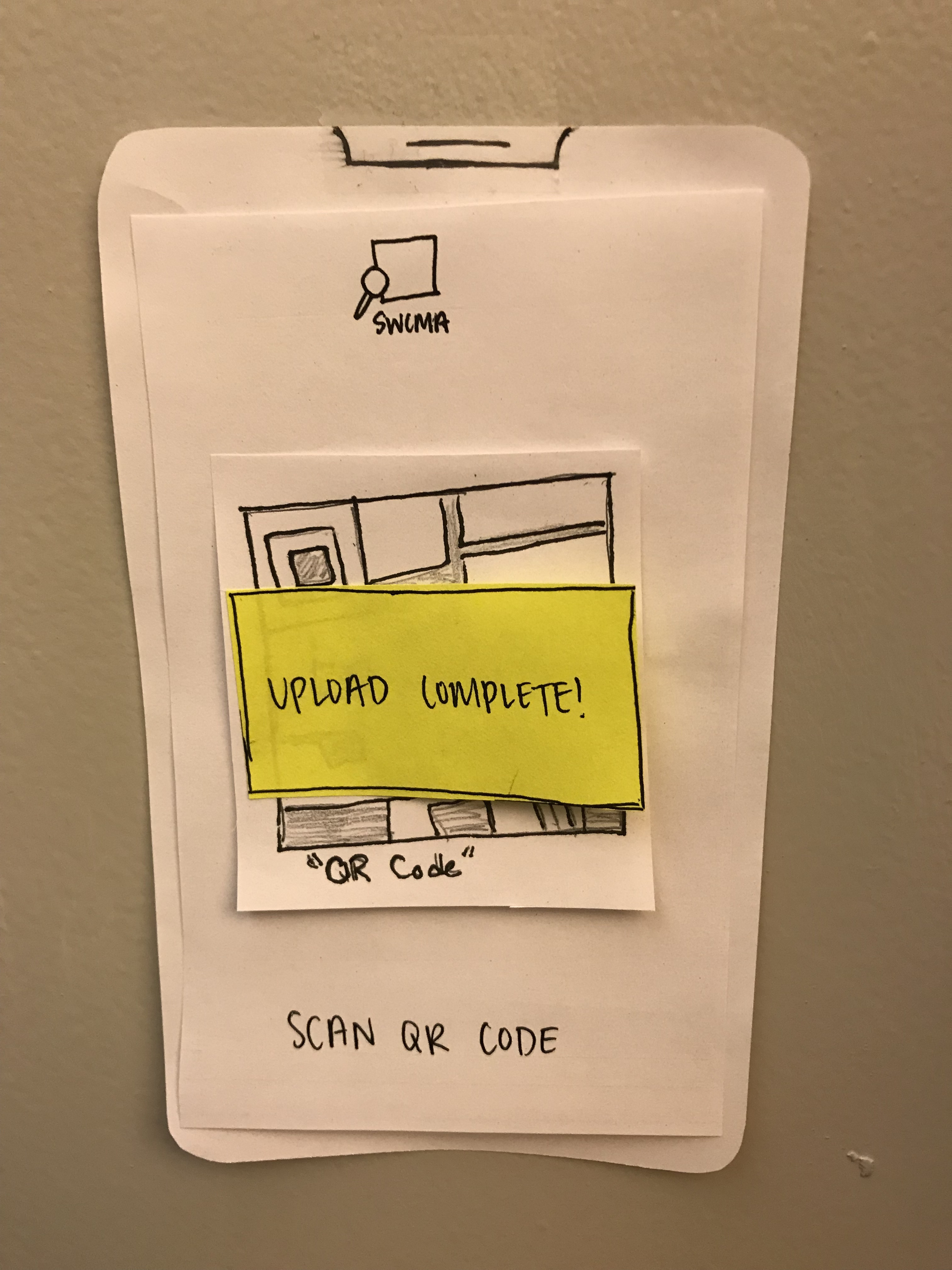 When the upload is complete, the app gives the user feedback to let them know.
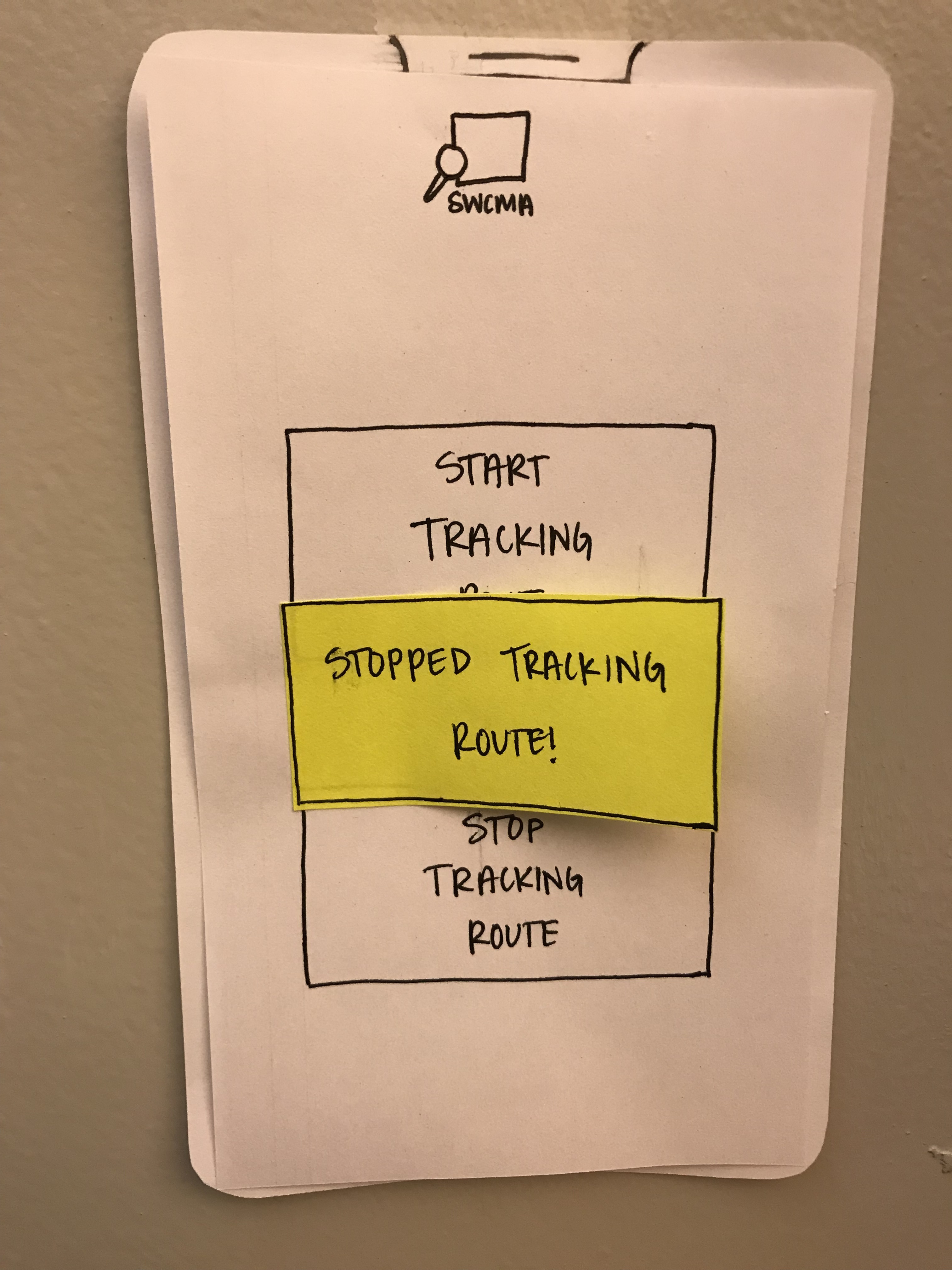 At the end of the visit, the user stops tracking their route.
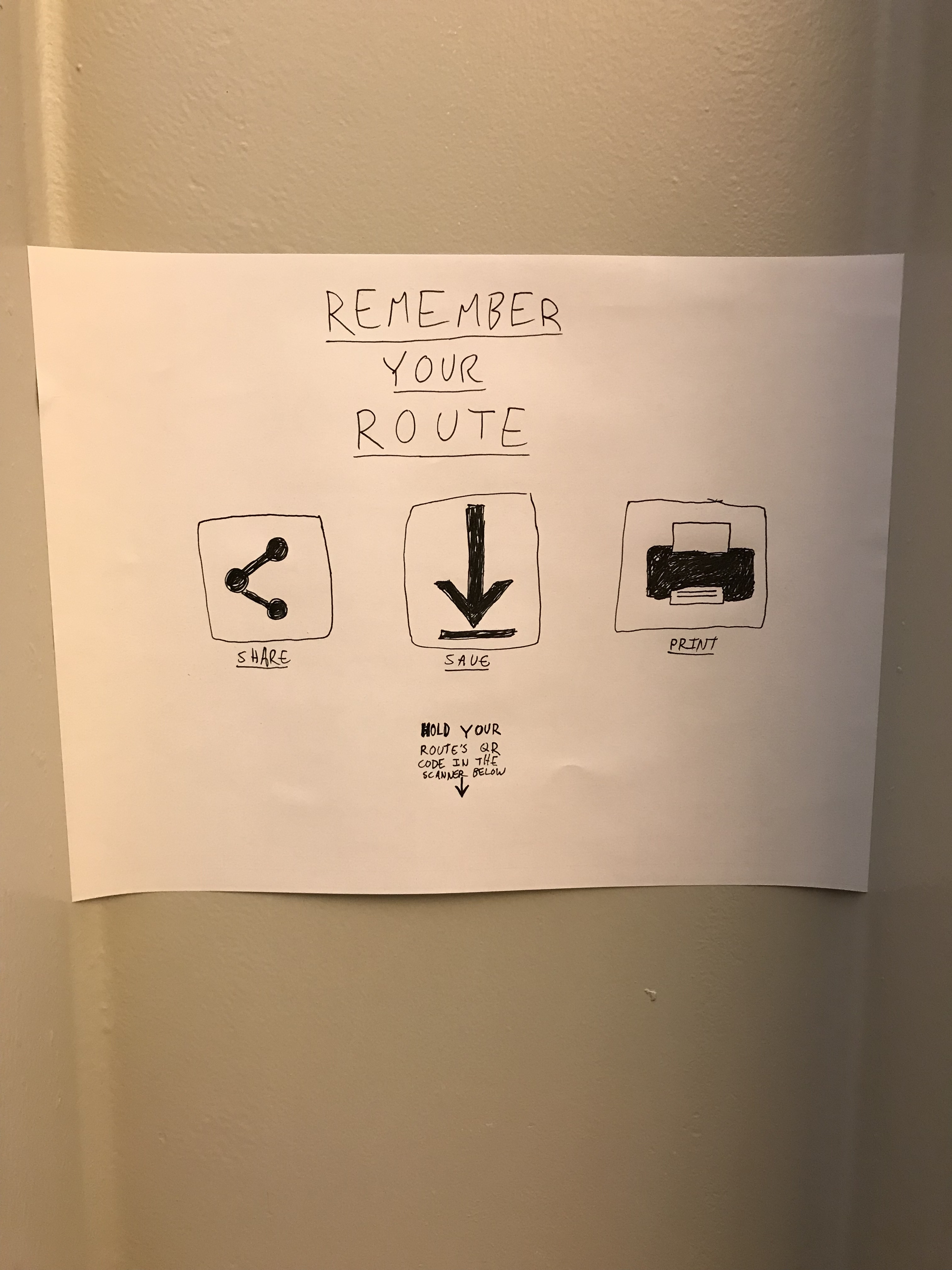 The final kiosk is stationed right by the door facing the stairs so that users exiting the museum can share, save, or print their routes by scanning the QR code on their phone app with the kiosk’s scanner.
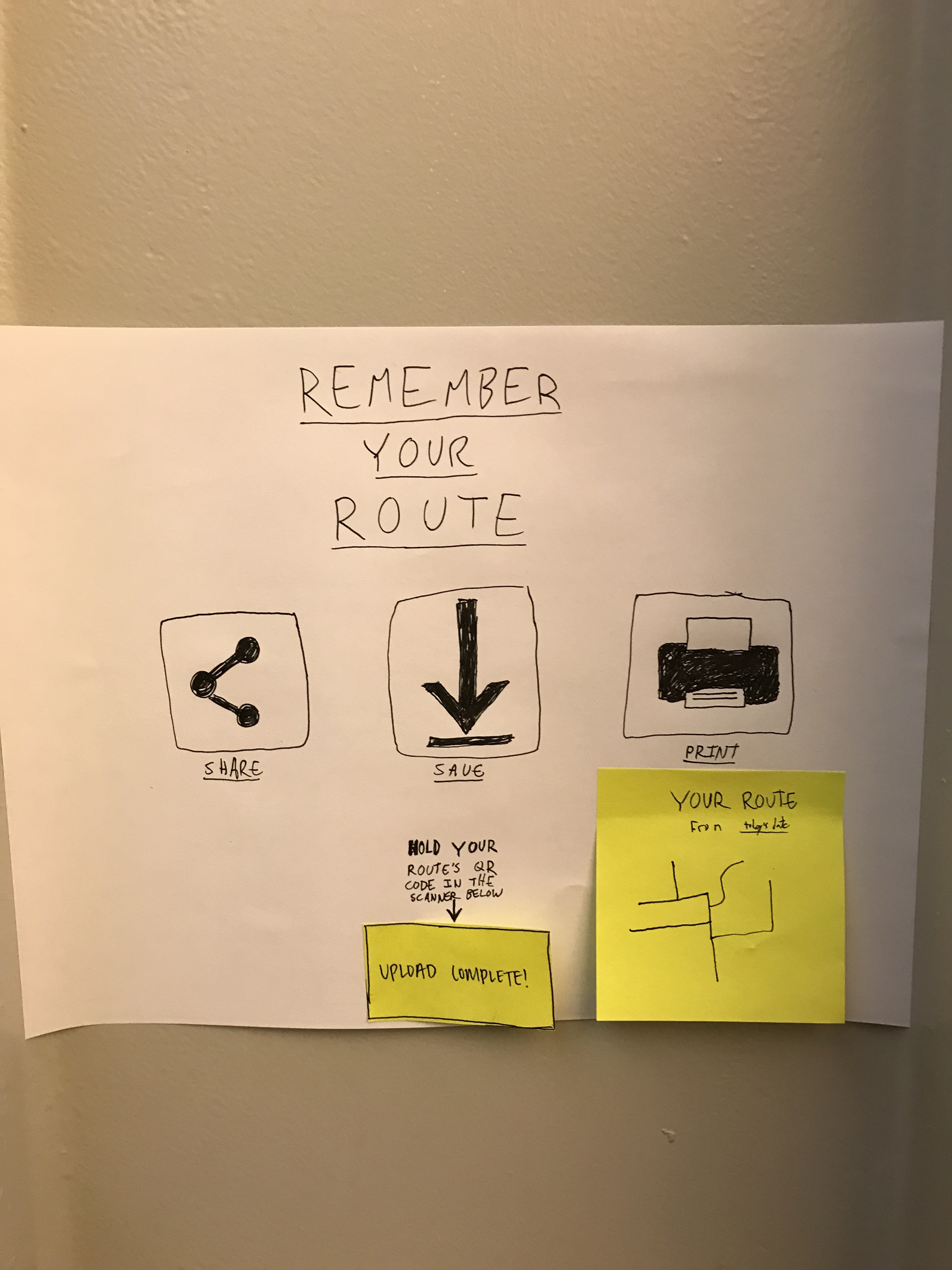 Feedback for successful scanning in of routes displays a success message and a small image of the route that can be printed, shared, or saved to your account.
Task 2: Learning about the curator’s perspective and vision for the exhibit
The user enables “curator notifications” and the mobile app provides banner style notifications with insight about the curator’s intention for the user’s specific location in the exhibit.
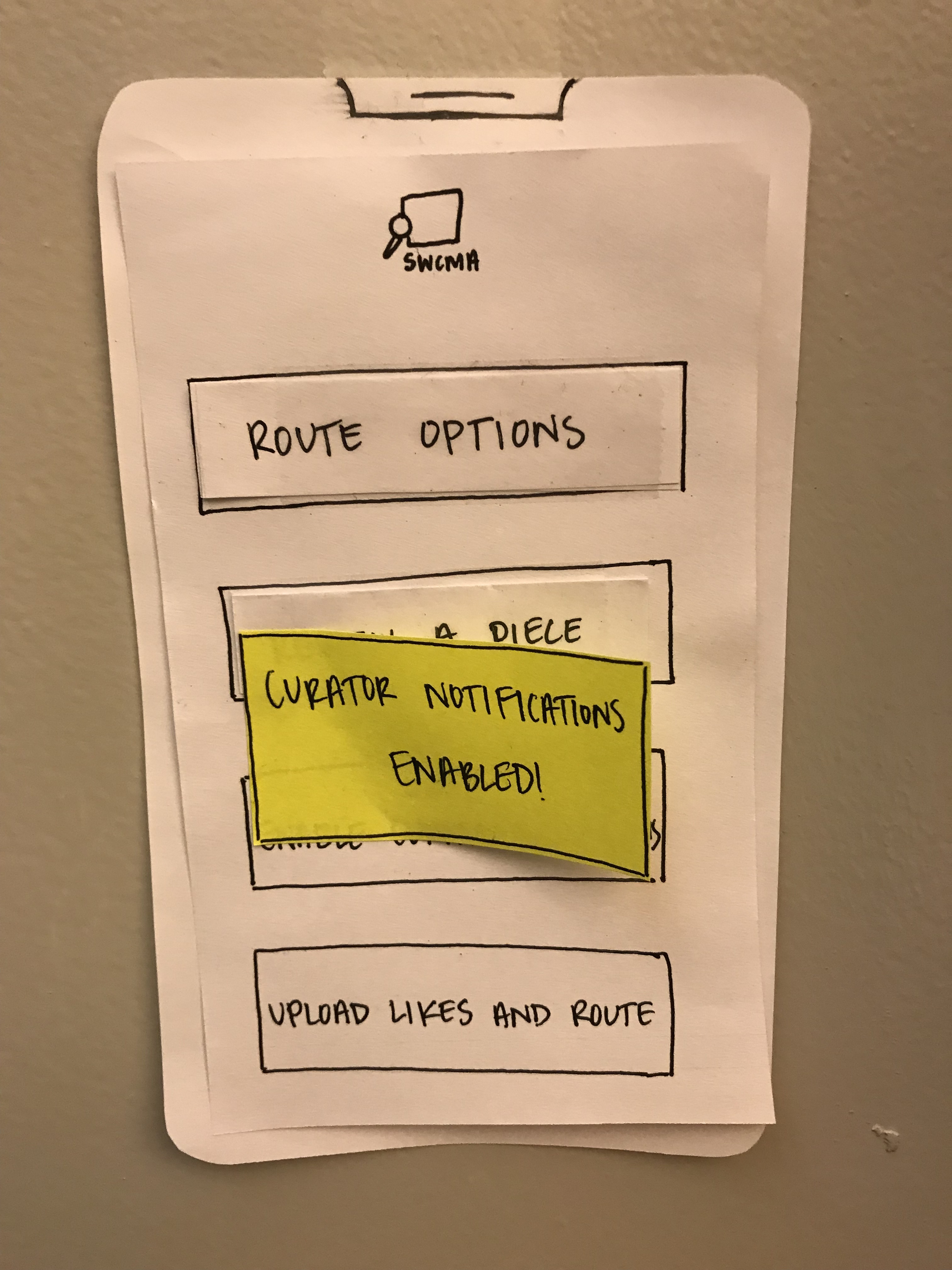 Upon enabling curator notifications, the user is notified that this setting is active.
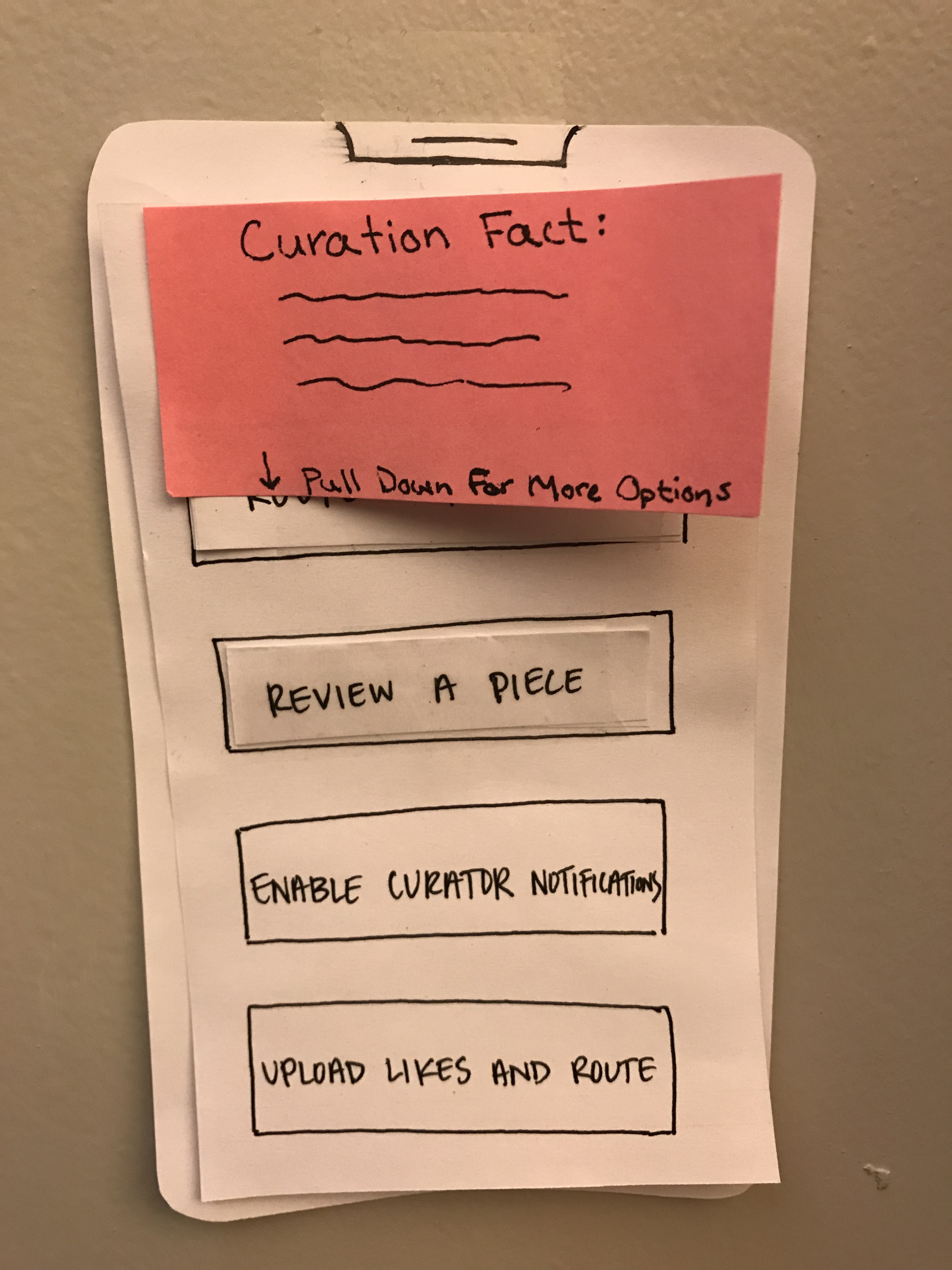 Curating facts appear as banners as users walk around the museum.
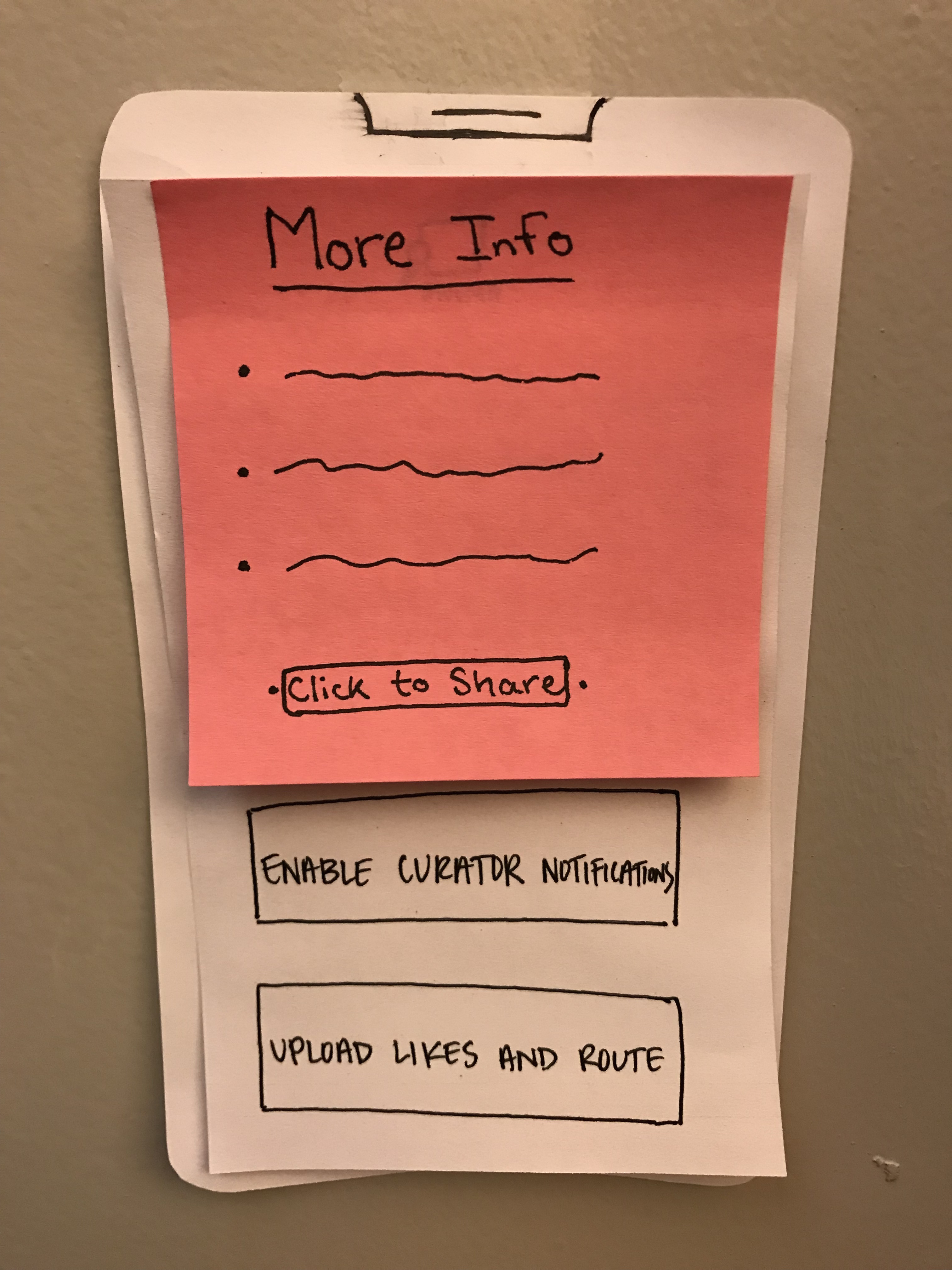 By pulling down the user is able to obtain more information in a pop-up-esque screen and can then share with friends if they would like.